AI roles
The studio has five AI roles. They share one contract: the editor holds the truth. A role proposes, and you approve.
- Every Apply is one undoable step: Cmd+Z (Ctrl+Z on Windows).
- Nothing that costs money, such as Generate or a render, ever runs without your click.
- Each role button has a hover tooltip, and each role window has an About panel behind its info button.
How the AI crew downloads
The AI crew downloads once, the first time you need it. It is in Basic and in Pro.
- The crew's instructions are not inside the paid download. This covers pitches, Dramaturg, Music match, Art Director, Motion Designer, Voice Director and looks.
- The first time you use one of them after installing or updating, the studio fetches them with your license key. They are a few KB and signed.
- The studio keeps them, so later they work offline.
- Without a license key in Settings › Accounts & keys, the role says so instead of running.
- The beta has them built in.
Working with a role window
These rules are shared by the role windows, so they are described once here.
Results survive closing
This holds for the Dramaturg, the Art Director and Analyze & align.
- Closing a role's window keeps its last result. Reopening shows it instantly, with no new AI call.
- Closing it while it is still reviewing lets the review finish in the background. The window does not pop back up, and a "notes are ready" message says so.
- Reopening then shows the result, or the running review, without starting another one.
- Opening another reel, or a new one, clears every role's result. Notes never carry over between reels.
- The window header has two rows. The first shows the role, a ? that explains it, one line on what it does, the AI that runs it with what one run costs, and ✕ to close. The second shows what the role found for this reel on the left and its buttons on the right.
- The re-run button (↻ Review again, ↻ Suggest again, ↻ Plan again…) runs the role again on the current state: the script, the cut or the track. The main action, such as Apply all, is the red button last in the row.
Note kinds
- Every note that asks for a text change carries a ready Apply rewrite.
- A redundant scene gets a Remove scene button. It asks you to confirm and is undoable.
- Notes with neither are advisory. You edit the script yourself, and the close button only dismisses the note.
- applied follows the reel, not the click. Undo an Apply with Cmd+Z and the note is open again, with its Apply button back. This works the same in the Dramaturg and the Art Director.
While a role works
- The window shows how long it has been working ("reading the script… · 12 s") and a Cancel button.
- Cancel stops waiting and applies nothing.
- A re-run you cancel leaves the previous result as it was. The story map and the open notes are still there when you reopen.
- The window's About panel is a layer of its own. Esc closes the panel first, and the window stays.
- When a plan limit is hit, the window says so with the reset time. You never get a silent spinner.
- If Codex is connected, the window also offers Switch to Codex. The text roles then run on Codex until you switch back in Settings › Accounts & keys.
AI draft & 3 pitches (Scriptwriter)
The AI draft panel turns your own words, a link, an article or a brief into a script.
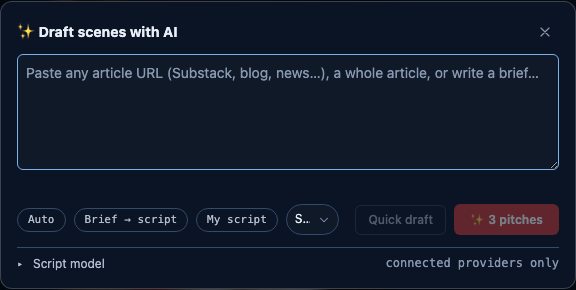
My script
My script uses your words as written. No AI runs, so it also works with nothing connected.
- Paste the script. An empty line starts a new scene, and numbered lines ("1.", "2)", "Scene 3:") work too.
- Check the scenes and the rough length that the panel shows.
- Click Use as written.
Over a script you already have, this is one undo step.
Quick draft
Quick draft writes one script from your URL, article or brief.
- A brief that asks for a length in words ("a 6-scene reel", "about 40 seconds", "one minute long") gets exactly that. Otherwise a script runs about 30 s.
- Every figure the brief gives, such as scores, dates and prices, is handed to the writer as a must-say list. So it is spoken in the reel.
- The topic picker in the panel searches the channel bank and fills the prompt as a
TOPIC:/ANGLE:brief. - The picker's count reads like the Topics tab: "2 unused · 1 used".
Language
- The script is written in the language of your article or brief. A Portuguese article gets a Portuguese voice-over, cards and captions, never a translation.
- Pitches and the Dramaturg's rewrites keep that language too.
- Pick a voice that speaks it. ElevenLabs voices are multilingual, and the built-in Kokoro voices are English only.
Numbers on cards
- A card shows only numbers the voice has said by then.
- A hook card whose number the hook does not say loses that text and shows the scene's headline instead. Examples are "2X" over a line that never says two, or a figure from a later scene.
- No number is ever made up for a card.
3 pitches
3 pitches offers three creatively distinct directions. Each is a different narrative archetype (mystery to reveal, misconception to correction, open loop…) with its own hook and scene outline.
- The writer first picks the three directions that fit the material, then writes the three cards side by side. This takes about a third of the old wait.
- Pick one, and only then is the full script written.
- The re-run button on a card regenerates that single card. It always brings a different archetype.
- One pitch carries a Recommended badge with the writer's one-line reason. The others are equally usable.
- Re-running the recommended card asks the writer for fresh options and keeps its pick, so the deal never loses its recommendation.
- A card's italic hook is the reel's first line. When the writer pitched a hook that no outline point says, the first point opens with it, so the picked reel says what the card promised.
- A card's length (~N s) is the whole reel's: the outline, the closing scene and the pause after every scene.
- An article's pitches speak as its author, in first person where the author wrote it that way.
- The picker opening is the outcome. No notice pops up over the cards.
Coming back to your pitches
- Esc, the close button or a click outside closes the picker and keeps its pitches.
- 3 pitches on the same brief or article reopens them ("kept from your last run") without a new AI run. ↻ Three new pitches writes a fresh set.
- The panel shows Back to your pitches while there are any.
- After you pick one, Pitches in the Script pane goes back to the cards, also after a reload. They are saved with the reel.
- Nothing runs until you pick another. Picking one over your script is one undo step.
Picking a pitch
Picking a pitch is binding.
- The script keeps one scene per outline point, in order, with that point's narration (light polish only) plus a CTA.
- The model only dresses the scenes with visuals and cards.
- The card's length counts that CTA too ("~49s · 8 scenes").
- Over a script you already wrote, Cmd+Z brings yours back. A new reel starts its history with the picked script.
The closing scene
- The closing scene points to "the full story — link below" only when the script was made from a link.
- A script from a brief or pasted text has no story elsewhere and no link. It ends on a line that stands on its own, such as a takeaway or "follow for more".
- The close names the source only as what it is. That is "Full story on Wikipedia" for a Wikipedia page, "on Substack" only for a Substack post, and plain "link below" for any other site.
Listicle style
- The Listicle style writes a countdown with a fixed number of items. It is 3 unless your brief asks for another.
- Each item gets one scene, plus the hook and the close.
- If the writer still comes up short, the hook's number is corrected to the items actually delivered. It is never left promising more.
Links with typos
- A link with a typo ("htps:/…", "broken..link", "www.example" with no ending) is caught in the panel before anything is fetched.
- Fix it, or choose Brief to script to treat the text as a brief.
- A site that does not exist says so in one plain sentence.
- Esc closes the panel.
Dramaturg
The Dramaturg is a critic of your script. Open it from Edit in the Script pane.
What it gives you
- Per-scene notes, each with Apply or the close button.
- A story map: hook, setup, reveal, escalation, turning point, climax and payoff, each with its intensity. It is saved with the scenario.
- The story map feeds the music arc and the Art Director, so run the Dramaturg first.
How it judges the hook
Scene 1 is judged on whether its first sentence opens a gap. That can be a contradiction, an outcome held back, or something at stake that the reel then answers.
These get a note:
- a line that opens on a date or a place alone ("In 1620, …")
- a question with no clear answer
- a hook the reel never pays off
- a headline that only repeats the line or is just a name
Channel-specific hook rules, such as a map on the hook, are not the Dramaturg's. They belong to the channel.
Rewrites
- A rewrite only uses facts the script already states, and never contradicts another scene.
- The closing scene keeps its call to action (follow, the link below). A note may tighten the line around it, never remove it.
Apply all
Apply all · N in the window's header applies every open rewrite and split at once.
- It is one undoable step. Cmd+Z takes them all back.
- Removing a scene is never part of it. That stays its own click, with a confirm.
- When two notes target the same scene, only the first is applied. The second stays open, since it was written against the old line.
Splitting a scene
A note can propose a split of an overlong scene (two ideas in one scene) into 2–3 consecutive scenes.
- It proposes one only when justified. A long scene that sustains one idea is left whole.
- Applying a split keeps the original scene's visuals on every part.
- The scene's card, with its headline, goes with the part whose words it quotes. A quote card that says what part 2 says lands on part 2, and the other parts are card-free.
- A card that matches no part stays on part 1.
- The new part gets its own story-map beat. It continues the scene's beat, and what follows the hook is setup.
- A note that pointed at the split scene for a fact that moved to the new part now names that part.
- Cmd+Z of the split puts both back.
Continuity pass
The continuity pass is separate from the craft notes and carries a cyan continuity badge. The script is read once, in order, knowing only what earlier scenes said.
A scene gets its own note with a ready rewrite when it:
- reacts to something never told ("Dagobert struck back" with no provocation before it)
- refers to a person, place or event as already introduced
- breaks the order of events
The rewrite either restates the reacting scene with its cause, or changes an earlier scene so it plants the cause. The story map is untouched by this pass.
Scene numbers
- Scenes are named by their position in the filmstrip ("scene 3"). This holds in the story map, the note badges and the note text alike.
- It holds even after a reorder or a split, when a scene's internal id no longer matches.
- Notes are listed in filmstrip order. A continuity note sits with its scene.
Music match
Music match picks a fallback music bed when a bed can't be generated.
- That happens when there is no ElevenLabs Music key, or the key lacks the
music_generationpermission. - The studio then picks the library track closest to the reel's music brief, instead of a random loop.
- Built-in and custom tracks are both candidates. The model weighs tone, energy, instrumentation and genre.
- With no AI provider connected, it matches by words and says so ("matched by words, no AI provider is connected").
- With a provider connected that fails, it stops with the reason instead of guessing by words.
- Its id is
music-match. It is a text call, so nothing is generated or spent. - Reels a module creates for you start with this bed. Generating a bed in the Audio tab replaces it.
Analyze & align
Analyze & align in the Audio tab lines up the music bed with the story's climax.
- It is a deterministic ffmpeg analysis of the music bed. It finds the track's impact, build and release.
- It suggests starting the track N seconds in, so the impact lands on the story's climax.
- Preview the suggestion with the play button, then Apply or dismiss it.
When there is nothing to suggest, it says why:
- the track's impact comes before the climax (the bed can only start later in the track, never earlier than its beginning)
- the climax comes after the track's first pass ends
- the track has no clear impact
- the story map has no climax
Art Director
The Art Director is the critic of the visual channel. Open it from the Image and Animation tabs.
It reviews image composition, camera motion, which scenes deserve a full animation, transitions and component choice.
Look first
A reel with no master style opens the Look step before any notes.
- The Art Director pitches three looks for this script. They are three different mediums from the catalogue, one recommended, each with a reason. This is a text call with no credits.
- Pick a look, or click Browse all to see the whole catalogue.
- Click Lock. It generates one master reference image, and your click is the spend.
- Click Keep. It writes the look and the master into the reel (Cmd+Z undoes), and the notes run on the reel with that look.
More about the Look step:
- A reel that already has a look, such as the channel default it was born with, shows that look first. It is marked this reel's look and preselected, so Lock then only generates its master picture.
- While the looks are pitched, the window counts the seconds. Cancel — browse all looks instead stops waiting.
- Skip keeps today's look. On a reel without one it reads Skip — no look.
- A reel that already has a master skips the step.
Browsing the catalogue
- Browse all opens the whole catalogue: graphic mediums, composition formats and worlds.
- The first tile is the reel's own look, or the recommended pitch.
- Looks show cover thumbnails, and there is a search. Esc there goes back to the pitches.
- A no lettering chip marks a style that can't draw readable text inside the picture. Your captions and cards carry the words.
- An optional twist line sharpens the medium.
- A look whose catalogue cover is not made yet says "no preview yet" instead of showing another look's picture.
- A search with no hit says "No looks match".
After you lock a look
- Closing the Look window after Lock keeps the master. Reopening shows it again, ready to Keep.
- Closing the window while the master generates is fine too. The progress row at the top of the screen takes over, and a message says when the master is ready or failed.
- From then on, every generated picture inherits the master and carries "render in: <look>" in its prompt. Nothing drifts back to a default medium.
- Scene image notes never decide the medium. They describe the subject, composition and light, and the locked look supplies the rest.
- Change look sits on the style-master strip in the Image tab.
- Save as channel default makes new episodes start with that look. They get a copy of it.
Changing the look of a reel with pictures
- The master step offers Keep + re-render N scene images. It keeps the look and regenerates every scene that already carries a picture, so the whole reel matches the new master.
- That is one generation per scene, with the master as reference.
- Plain Keep leaves the old pictures.
- The same bulk action sits in the Art Director header as ↻ Redraw N pictures, for later. It re-renders in the reel's current look.
- One progress row counts the pictures down and clears when the last one lands.
- Scenes without a picture are left to the image notes.
Look match
Look match takes one catalogue look and a list of writers with their recent post titles. The Art Director names the writers whose post that look would serve. It is a text-only judgement, and nothing is rendered for the writers it names.
The rhythm map
- The window shows a visual rhythm map of real 9:16 mini screens.
- Badges count open notes. Clicking a screen filters its notes.
- Patch notes carry a before-and-after preview.
- On the HyperFrames engine, the mini screens and the "after" preview are drawn exactly as the stage draws the scene: cards, bare text and captions.
- Between two screens sits the transition of that cut. A long reel scrolls sideways.
Scene numbers
- Scenes are named by their filmstrip position everywhere: notes, the filter chip and the progress messages.
- A note's text is stored against the scene itself, not its number. After a reorder, "scene 3" in a note still points at the right scene. It now reads "scene 4" if that is where the scene went.
Image notes
- Every scene without a picture gets an image suggestion. On a fresh, empty reel, that is every scene.
- Image suggestions never count toward the Art Director's usual limit of ten notes.
- The note shows the full image prompt, and you can edit it.
- Apply fills the edited prompt and starts the generation in the background. Your click is the authorization to spend, and the picture lands in the scene when ready.
- A scene with no narration gets a script badge ("This scene has no narration yet") instead of an invented picture or montage. Write the narration or remove the scene, then re-run.
Generating pictures
- Parallel generations each keep their own progress row at the top of the screen. Every finished picture lands in its own scene, even when several finish at once.
- The same progress row appears for Generate in the Image and Animation tabs.
- While a picture generates, the scene shows as generating in the filmstrip and the Image tab, so nobody pays for it twice.
- Cmd+Z after an image Apply reopens the note, but its button reads generating… and Apply all skips it.
- Once the picture has landed in the scene, the note reads picture set and offers no Apply, even though Cmd+Z took the prompt back.
- While a window shows its own spinner, the top progress rows stay hidden, so one piece of work never shows two loadings. They come back as soon as that spinner goes away.
- Such spinners are the Look master, a role reading the script, Pitches, the generating banner and a running render.
Master style first
- When a master-style note is applied together with other image notes, or through Apply all, the other pictures wait for the master to finish.
- They then generate with the master as their style reference, so the whole batch shares one look.
- On the Codex subscription, at most two pictures generate at a time. The rest queue.
Animation notes
Animation notes carry a Mark for animation button. It only marks the scene, the way the Animation pane would, and the clip renders at take.
- A scene with one picture becomes a Long shot whose windows draft themselves at Render take.
- A scene with several stills becomes Still to still, with the suggested motion.
- The note's Apply line says it in those words ("Animate · Long shot · windows draft at Render take").
- Animation notes come only for scenes that already have a picture. A scene without one gets its image note first.
- A Long shot keeps the Art Director's own motion idea as window 1 ("motion: … · later windows draft at Render take"). Render take drafts only the windows still blank.
- Its motion prompt always carries a camera phrase the GPU accepts. A near miss is rewritten to the exact phrase: "Camera slowly pushes in…" becomes "Camera pushes in slowly…".
- A prompt with no readable camera move is left blank, so Render take drafts that window.
- A Still to still note without any usable prompt stays advisory, with no Mark button. It never marks a scene that could not render.
Transitions
- A transition note names the cut it changes, for example the cut from scene 3 into scene 4.
- Apply sets how scene 4 enters. That is exactly the tick on the rhythm map and the cut in the render.
- The first scene is always a hard cut and never gets a transition note.
Hooks and frames
- Hooks never get a boxed card. New scripts land the hook as a bare floating text over the picture.
- The Art Director proposes the same fix on older reels. It never does so on a hook that already floats bare text, and never with copy that just repeats the voiceover.
- It knows the frame toolbox. For Whole picture, Apply switches the layout to the entire photo on a blurred bed.
- Two point camera moves and two-band split frames come as advisory notes. You build those yourself in Visuals.
Brand note
- The Art Director sees the reel's brand and can emit one reel-wide brand note. An example is the karaoke colour vanishing against the imagery.
- Apply merges the colour fix into this reel's own brand copy only, never a channel or studio default.
- Logo and font notes stay advisory.
Module notes and Apply all
- Modules can extend the Art Director's vocabulary with module notes. See Modules.
- A module note whose button reads Hand to assistant turns the note into a prompt for the studio assistant.
- The assistant then runs the module's whole workflow. For a map scene that is geography, plain map, layers, review and attach.
- Apply all in the header applies every machine note as one undoable step, and starts every image generation at once.
- Module notes stay one-by-one.
Motion Designer
The Motion Designer suggests motion components for your scenes. Open it with Motion Designer at the top of the Component tab.
- It needs the HyperFrames engine.
- Esc closes it, or closes an open About panel first.
What it suggests
- It reads every scene with narration and suggests up to four motion components per scene, best first.
- The components are flow, versus, kinetic stat, keyword pop, strike / correction, typewriter, counter, unit grid, bars / ranking, checklist, timeline and before / after.
- Each suggestion is pinned to phrases the narrator actually says.
- A step lands a hair before its word, never on a "the" or an "of".
- A flow or checklist step reads and lands like the gallery's. Each item keeps its verb and object ("Write the spec") and lands on the verb.
Using a suggestion
- The strip on top shows each scene's best fit. Click a scene.
- Its narration shows the anchor words underlined. Every suggestion plays on the scene's own words, with its strength (1–5) and one line on why.
- Click Use to add a suggestion to the scene.
What Use does:
- It replaces only the Motion Designer's earlier pick on that scene. Classic cards, components you added yourself and locked ones stay.
- It is one undoable step (Cmd+Z).
- The component lands in the free space beside the scene's cards. It goes over them only when the frame has no room, stepped off them and never exactly on top, so you can move it.
A suggestion has one button, Use. To change its look or timing after that, open it in Components like any other component.
Other buttons in the window:
- Browse all components opens the component gallery on that scene.
- Use best on N scenes takes the top suggestion everywhere nothing is in use yet.
Card states
- in use means the component is on the scene right now. Undo it or remove it, and the card offers Use again.
- Rewrite a scene's narration and its suggestions, made for the old words, are put aside. The card says the narration changed and offers suggest again.
- A scene without narration has a card too. There is nothing to anchor a component to.
- Each scene's last suggestions are kept. Reopening it, even after a reload, shows them again without asking the AI.
- suggest again on a scene asks anew for that scene only. The re-run button at the top asks for every scene.
Advice
Nothing is hidden or cut. The Advice box only warns about what is in use:
- more than about 40 % of the reel in diagrams, where it starts to read like a slide deck
- two scenes in a row
- weak picks
Ignore it if a slide-deck look is what you want.
What it never does
It is the one role that drafts instead of critiquing, and it is kept narrow.
- It never writes code, never places pixels and never picks timings.
- It never invents a number. The number on screen is the number spoken.
- It never edits the narration.
- Numbers follow the gallery's strict fit. A kinetic stat, a counter or bars need a percent or a real figure ("three things" is a count, not a stat).
- A unit grid needs a spoken share.
- It declines story beats, scene-setting lines and calls to action.
- A build-up whose first step would land in the scene's last moment is rejected.
- A suggestion that breaks those rules is dropped on its own. The others still show.
Captions in diagram mode
- While a step component is on screen, captions switch to diagram mode. They show pages of three words on one line, in the brand's own caption style, so they never fight the diagram.
- A flow or a comparison grows as the steps land. There is no empty panel waiting for later steps.
Auto motion
Reels made without you at the keyboard call the Motion Designer on their own and put its best suggestions on the reel. These are the nightly channel runs, the AI author runner and modules that build reels.
Nobody picks there, so the advice becomes the rule:
- the strongest suggestions, up to about 40 % of the reel
- never two scenes in a row
- nothing weaker than 3/5
How it behaves:
- A scene that already has a motion component keeps it, and the classic cards stay.
- A failure never stops the reel.
- A component never lands on top of a card. It takes the free space above or below it, and the next suggestion is tried when the best one does not fit.
- A scene with no room, such as a hook whose title card fills the frame, keeps just its card.
- Turn it off per run with
"autoMotion": falsein the run's config, or with--no-motionfor the author runner. - A run may ask for a looser rule for its series, with a bigger share of the reel and neighbours allowed. It may also ask for a background box for every component it places.
- The AI author runner asks for about 70 %, neighbours allowed, on a glass box.
Voice Director
The Voice Director is the director of the spoken channel. Find it in the Voice tab, and run it before any voice is synthesized.
- The analysis is a text call with no credits, while the voice costs credits. So the plan comes first.
- It works with ElevenLabs only. On other providers the button is disabled, and its hover tip says why.
- There, the Voice tab and the Overview's Voice row say "delivery planning needs ElevenLabs". You never see an open "delivery not planned" to-do that nobody could tick.
What it plans
It plans the delivery sentence by sentence. The words never change.
- what the voice reads, with performance punctuation: a dash for a short hold, an ellipsis for a longer one
- speed, stability and style per sentence
- the pause after each sentence
Reviewing the plan
- The window lists scenes and, under each, the sentences whose delivery changes.
- Each sentence has a now card and a proposed card, with changed values in amber.
- The old and new play buttons each send one TTS request for that single sentence. They run on click only, and the result is cached.
- Apply works for one sentence, one scene or all. It only writes the plan into the scene, and Cmd+Z undoes it.
- Unchanged sentences hide behind a filter.
Reel model
Choose the Reel model once per reel in the Voice tab.
- v2 precise gives exact karaoke.
- v3 expressive supports audio tags like
[sighs]. The director writes tags only on v3. - The model never switches inside a scene, because the timbre would jump.
- Switching regenerates every sentence.
How the voice is made
- The engine synthesizes one request per sentence. It sends the surrounding text as context, so the prosody stays continuous.
- It inserts the pauses itself and joins the clips.
- Timbre lock: stability and style are reel-wide, and only speed may change per sentence.
- There is one seed per voice, and each request conditions on the previous clips. So the narrator stays one person.
- Sentences under four words are voiced together with the next one.
- Each sentence clip is cached on its own hash. An applied sentence is the only one that regenerates on the next Play or render.
- Captions come from the script text, never from the performance notes or tags.
- Sentence rows (Voice tab › Advanced) let you edit speed and pause by hand for the selected scene, without the director.
Delivery presets
Delivery presets in the Voice tab are the reel's character: Documentary, Storyteller, Punchy explainer, Intimate and Expressive (v3).
- A preset sets the model family, stability and style, base speed and the default gap between sentences, in one step.
- The play button plays one line of the selected scene in that preset. It is one TTS call, cached.
- The studio marks its pick for this script, with a one-line reason.
- The Voice Director then plans inside the preset's habits.
- Save as channel default makes new episodes start with the preset. They get a copy, and existing reels keep theirs.
- The old sliders sit under Advanced.
Model routing
Model routing decides which AI service each role runs on.
Roles run on Automatic by default. That means your configured Script provider, or Your Claude over MCP when no AI service is connected in the studio.
In Settings
Settings › AI Pipeline › AI crew has a row per role.
- Click a role's Runs on to see every way it can run, with its price per run. The options are Automatic, each Claude model on your Anthropic key, your Codex plan and Your Claude over MCP.
- Pick one to switch.
- What each role costs shows what each role runs on now, and its price.
- Services you have not connected sit under one line with their prices. You can see what a key would cost before you add it.
- Advanced model routing in Settings can pin any capability to a different provider or model, including a local LLM.
- A disconnected override stops that role with a message naming the route. It never falls back silently.
In a role window
The AI button in a role window's header (for example ● Your Claude · on your plan ▾) picks the way for that role: Automatic, Your Claude, or one of the AI services connected in the studio, under Run with. The same panel shows what one run costs. The dot turns amber while the role waits for your AI app.
- Your Claude means your own Claude Code, Claude Desktop or Codex does the work on your plan. See Settings › MCP.
- The pick is saved per role. It is the same setting as Runs on in Settings › AI Pipeline.