Settings
Settings is where you connect your AI, voice and publishing accounts and choose who runs each step.
The six tabs
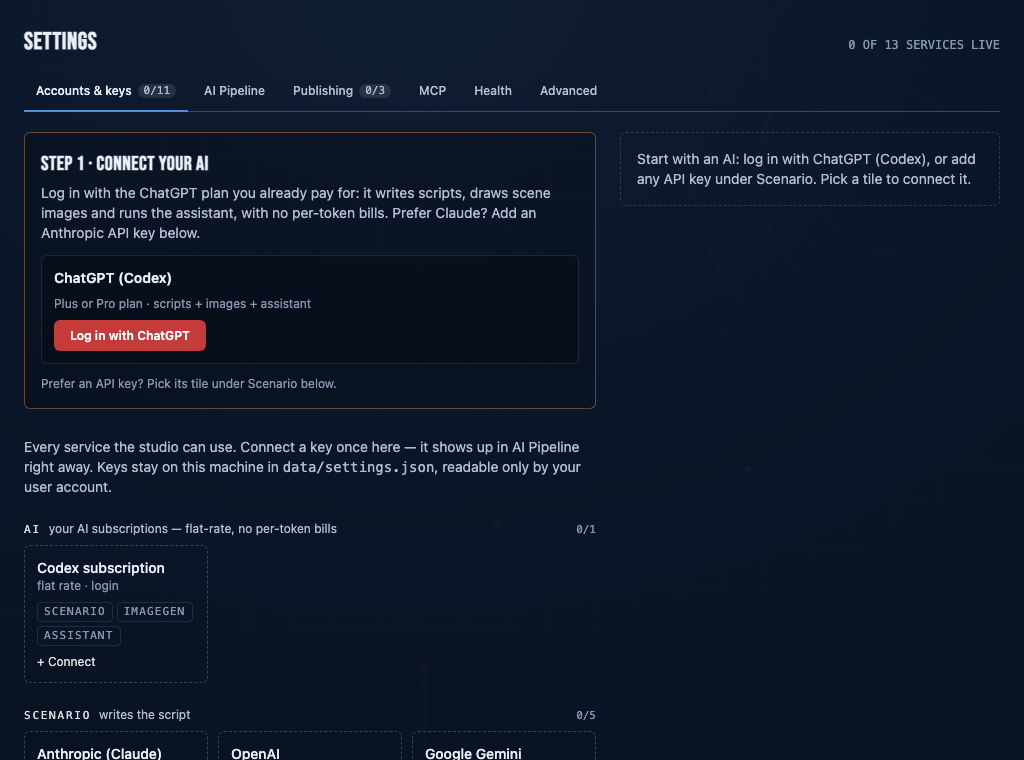
- Accounts & keys opens first, because a key or a login is step one. It has one tile per service, grouped like the pipeline: AI subscriptions, Scenario, Voice, Clips.
- A dashed tile with + Connect is not connected yet.
- A green line shows the saved key, masked.
- Click a tile and its card opens beside the grid, with the key fields, get key and Save.
- AI Pipeline sets who runs each stage, picked from what is connected. The role pickers are the only place a provider is chosen. The tiles hold keys and logins.
- Publishing lists every YouTube, Instagram and Substack account. Each platform's default row comes first (see Publishing).
- MCP lets your own Claude or Codex app drive the studio (see MCP).
- Health shows the live service checks. The Deck's Health item opens this tab.
- Advanced holds per-capability model routing.
A link can open a tab directly, for example /settings?tab=roles. The tab names are accounts, roles, publishing, mcp, health and advanced.
Log in with your plan
You can connect your AI without a terminal. On a fresh install, Accounts & keys opens with Step 1 · Connect your AI: Log in with ChatGPT.
- Click Log in with ChatGPT.
- The first click installs Codex for the studio, which takes about a minute. It goes into
data/tools/codex. A Codex CLI you installed yourself is used instead when it is on your PATH. - The ChatGPT sign-in page opens. Sign in there.
The Codex subscription card (click its tile) carries the same Log in button for later.
If the sign-in does not go through
- If the tab did not open, the row shows Open the sign-in page.
- Cancel stops a sign-in.
- A sign-in left alone gives up after 10 minutes.
Claude needs an API key
Anthropic does not allow apps to run on a Claude Pro or Max plan, so the studio has no Claude login. Paste a key from console.anthropic.com into the Anthropic (Claude) tile.
- A Claude subscription token saved by an older version is removed on the first start after the update.
- A step that was set to the Claude subscription stops with a message until you pick another provider.
What the login runs
- The login you make here writes your scripts, unless you had already picked a provider that still works.
- Change it any time under Script model in the Draft panel. It lists your logins and keys and shows what scripts run on.
- With ChatGPT (Codex), Script model also lists the models your Codex offers. Codex default uses the one your Codex is set to.
- A model your plan or Codex version cannot run stops with a message. The studio never switches to another model by itself.
- The ChatGPT login is enough for scripts, images and the assistant.
- The banner goes away once any AI is connected.
- Scene images run only on ChatGPT (Codex), an OpenAI key or a Gemini key. With Claude alone, scenes render as colour cards unless you add your own pictures.
AI Pipeline
The AI Pipeline tab picks the provider for each stage. Only connected providers appear in each Runs on picker. Local or cloud is just a badge.
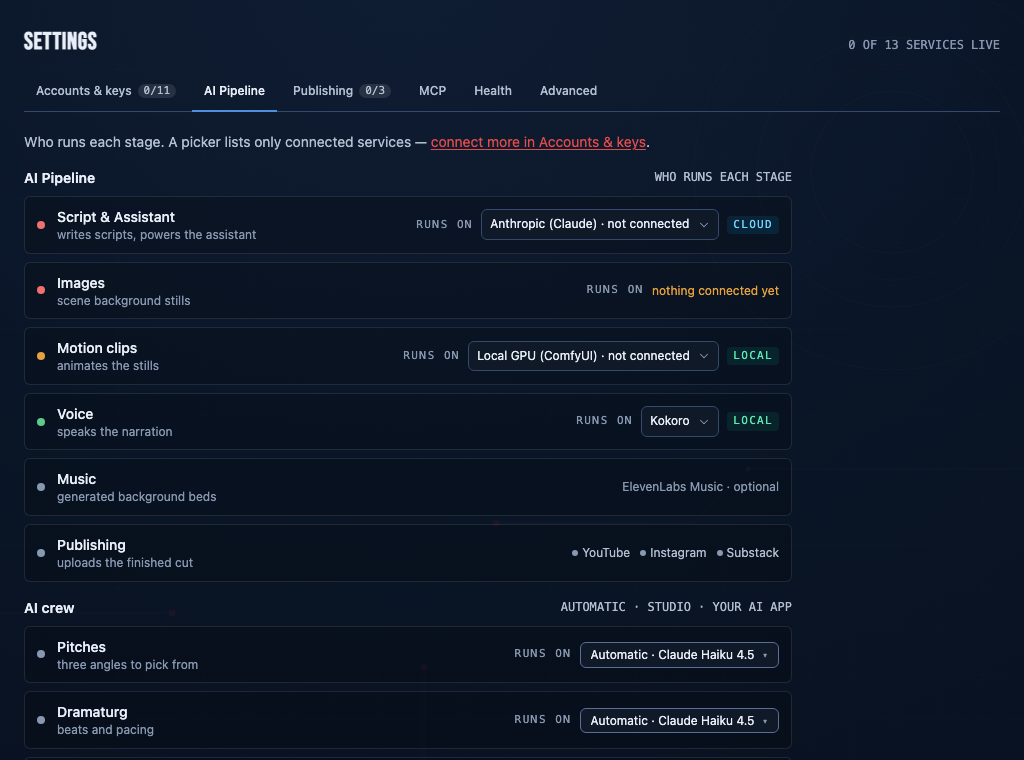
Stages and their providers
- Script & Assistant: the Codex subscription (flat rate), an API provider (Anthropic, OpenAI, Gemini, OpenRouter), or a Local LLM. A Local LLM is one OpenAI-compatible Base URL, such as Ollama, LM Studio or vLLM.
- Assistant on Claude runs on your Anthropic API key, through the Messages API with one call per turn. A Claude Code login on the machine is not used.
- Images: the Codex subscription, OpenAI (gpt-image-1) or Gemini.
- Motion clips: Local GPU (ComfyUI and Wan, set up by the installer; see Install in the README) or Replicate. The pick also drives Animate and the Render queue.
- Voice: Kokoro (local, free), ElevenLabs, Fish Audio, OpenAI TTS, a local TTS server or Chatterbox (local voice cloning, free). Install Chatterbox with the installer's optional step or
npm run setup:chatterbox; The studio finds it by itself; Choose another folder… under the Voice tab's Engine settings points at another install. Its voices are made in the editor's Voice tab (Voice library). - Music: ElevenLabs Music (optional).
- Publishing: YouTube, Instagram, Substack (see Publishing).
Subscriptions win over API picks when both are set.
What runs before you pick anything
- Fresh install with Codex logged in: Script runs on the Codex subscription and Images run on Codex.
- An Anthropic key, once saved, takes Script back.
- Fresh install with only an API key: with no login and nothing picked, an OpenAI, Gemini or OpenRouter key (or a Local LLM URL) runs Script on its own. An OpenAI or Gemini key runs Images. There is no dropdown to change first.
- With only Codex logged in and no Anthropic key, the assistant runs on Codex too.
- Your own pick always wins.
No silent fallbacks
When the provider you picked cannot do its job (no key, logged out, down), the step stops and says what to fix. The studio never switches to another provider, voice, track or backend you did not choose.
- Local LLM picked without a URL stays the pick. Scripts stop with "the local LLM has no address — set its URL in Settings".
- A subscription picked but logged out (you ran
codex logout, say) stays the pick in its role, marked not connected. Scripts, images and the assistant on it stop with "… is not logged in — runcodex login…" until you log in again or pick another provider. - Replicate picked without its token stops with "no Replicate token is saved — …" everywhere: render, Animate and the queue. The studio never switches to the local GPU on its own.
- Nothing connected for a step? An AI step says so in plain words ("no AI provider is connected for this step — connect … in Settings") instead of a technical message.
- The blank editor, Kokoro and local renders work with nothing connected at all.
Logins and keys
- Logged in or out in a terminal while the studio is open? Switch back to the studio tab. Settings, the assistant and the AI draft re-read the logins.
- Every saved key, token or URL in Accounts & keys has a remove link next to "saved: …". An empty field still means "keep the saved one".
- Removing a key also un-picks the stages that ran on it. Script, Images and Voice fall back to what is still connected.
- A removal takes effect at once, with no restart.
ElevenLabs
- get key opens the API keys page on elevenlabs.io.
- Turn on Text to Speech and Voices (Read + Write) for the key.
- Save it in the studio.
After you save it, the card shows What this key can do:
- one line per permission, marked as allowed or not, with what it is for.
- your credits, when the key may read your account.
- The check spends no credits.
When ElevenLabs refuses something, the studio says which permission or limit it hit and where to fix it:
- A missing permission is named. Turn it on under API keys on elevenlabs.io.
- An empty account says how many credits were left and how many were needed.
- A voice that is no longer in your account points you to the Voice tab.
- The Voice tab also warns up front when the key is missing a permission it needs.
What the AI costs
The studio shows what each AI role costs per run. Every AI call records how many tokens it used in data/ai-usage.jsonl on your computer, and nothing is sent anywhere.
How the cost is worked out
- The cost is for the model you picked, at the provider's list price.
- Once a role has run a few times, it comes from your own last runs. Before that, it comes from a measurement made on real reels.
- A login (ChatGPT or Codex plan) costs nothing extra per run.
- A model whose price the studio does not know says "price unknown" instead of guessing.
Where you see it
- In each role's window (Dramaturg, Art Director, Look, Motion Designer, Voice Director, Pitches), on the AI button in the header: what one run costs. Click it for the typical and a heavy run, the tokens, and what the number rests on.
- Settings › AI Pipeline › What each role costs: every role, and what one reel costs with each role run once.
- Render complete: what this reel's AI cost so far on your API keys. This counts the AI calls made while the reel was open in the editor.
Advanced model routing
The Advanced tab lists every AI capability. You can route one to a specific provider and model without touching the defaults.
- A route whose provider lost its key stays visible, marked · not connected.
- That capability then stops with "… is routed to X, but X is not connected — reconnect it, or set this route back to the studio default".
- It never quietly runs on another model.
Developer mode
Settings › Advanced › Developer mode lets the assistant write plugin modules (modules/<id>/). These are code the studio runs.
- It is off by default. While it is off, the assistant cannot write modules at all.
- With it on, every module the assistant wants to write first shows you an approval card with each file and its code.
- Always allow never covers module writes.
- Leave it off unless you build modules.
Health
The Deck's health dot and the Health tab show live verdicts for the server, the providers and the local GPU.
Assistant engine
Assistant engine reports the last assistant run on every engine, Codex and the Anthropic key alike.
- It says "last ok …" after a good reply.
- It turns red with the provider's error after a failed one.
- Restart is always there.
- With no engine connected at all, it is amber ("no engine connected — …"). A studio with nothing connected never reads "all good".
Background passes
- Auto-publish and Render queue show when their background pass last ran. Auto-publish runs every 5 minutes and the Render queue every minute, whether or not there was anything to do.
- A warning means the pass really stopped, not just that nothing was due.
- With no publishing platform connected, Auto-publish is grey ("no platform connected").
- Run sweep now first lists what the sweep would publish (channel, episode and platform) and asks once. Nothing goes out before that yes. An empty list means nothing is due.
Service tiles
The service tiles and cards turn green only when the service can actually work:
- YouTube with all three fields.
- Instagram with the token and the user id.
- Substack with the session cookie.
- ComfyUI once its URL is saved.
- Voice cloning (Chatterbox) once it is installed. Health shows "not installed (optional)" until then;
npm run doctorprints the same line.
A handle or a user id alone shows as saved, not connected.
Recent errors · server log lists warnings and errors only. The renderer's informational trace stays in the full log.
Send a bug report
Send report… sends a bug report to the studio's author, only when you ask. Nothing is ever sent in the background.
- Click Send report…. It shows exactly what would be sent: version, system, the health rows, recent errors and the end of the server log. Keys, tokens, your user name and e-mail addresses are removed.
- Add a note on what you were doing.
- Click Send.
- The report carries your license key so the author can reply.
- With no key saved yet, paste the update token from your download page. It is saved to
data/license.json, the same filenpm run updateuses. - If sending fails, Copy support report into an e-mail still works.
Feedback
Feedback is the quick way to tell the author something during the beta. It is the speech-bubble icon in the small pill at the bottom right, left of the assistant's button.
- Pick Something broke, Confusing or Idea.
- Write a line.
- Click Send.
- The screen you are on and the studio version go with it.
- Diagnostics (the same content as Send report) are ticked only for Something broke. For the other two, only the version line is sent unless you tick them.
- See exactly what is sent shows the note and the data before you send.
The "is down" banner
A red … is down banner across the top appears only for a hard failure.
- It shows for a service probe that says down, or for the assistant failing again. One slow or failed turn alone stays on the Health card.
- It pushes the page down while it shows, so it never covers the editor's Save or Render take.
- It sits under open windows and ends where the assistant dock begins, so it never covers either.
- The close button hides it until that issue clears.