Publishing
The studio publishes your reels to YouTube, Instagram and Substack. Each channel has one queue, and a slot is one platform on one date.
Publish an episode
The publish preflight is where you check the text before anything goes out. Nothing reaches the queue without the text passing your eyes.
- Click publish… on an episode card. The preflight opens.
- Tick the platforms to publish to.
- Edit the publish copy: title, description and hashtags. On Substack the description is the note text.
- Pick the action on the split button. The arrow beside it switches between:
- Publish now uploads immediately.
- Enqueue takes the next free slot, following the channel's cadence.
What the preflight shows
- A platform the channel cannot publish to shows not connected. The channel needs its own linked account or the default credentials in Settings. Another channel's account does not count.
- Substack is not preselected, and cannot be ticked, until its session is connected.
- With no platform ticked, the action button stays disabled.
- Esc closes the preflight. Once you have edited the copy, it asks first: press Esc again or Discard to close, or Keep editing to stay.
- The preflight never grows taller than the window. The copy scrolls.
- An episode whose last publish failed is still on the queue. Its card says publish failed instead of offering publish… again. Retry it or remove it with the retry and remove buttons in the Publish queue tab.
Choose where a channel publishes
The YT, IG and Substack chips in the Publish tab pick the platforms for this channel.
- Click a chip to exclude that platform. A Substack-only channel enqueues one row per episode.
- Excluded is not the same as disconnected. Settings stays untouched.
- A chip says not connected when the channel has no account there.
- The Substack chip stays off until its session is connected.
- All chips off is allowed. The channel then publishes nowhere, the same as Off in Settings › Publishing.
- publish now skips the slot calendar. The episode is enqueued for today at the current minute, and the next scheduler tick (or Run sweep now) fires it.
- Substack publishes the reel as a video note. The note text comes from the episode's publish copy (hook, CTA and hashtags in
publish.json), which you can edit per episode.
The queue
The queue holds every enqueued episode of a channel, in date order.
How dates are dealt
- An enqueued episode gets a YouTube and Instagram pair, plus Substack when connected. All of them share one date.
- That date is the first free day from today on every one of its platforms. A day freed by a removal is filled before the queue grows at the end.
- Pairs reorder as a unit, and dates re-deal automatically.
- The queue's order is its dates. A reorder with the up and down buttons survives any later cadence change.
- Dates follow your computer's local calendar day. Enqueueing just after midnight lands on the new day, never on yesterday.
- A slot is due once its date and time have passed. Publish due and the automatic tick never ship a later slot early.
Reading the queue
- The tab opens with a one-line summary of the channel's rules, for example "1 a day per platform · weekdays only · at 17:00 · YT + IG + Substack", and a Change in settings link.
- Each row shows the episode, its date and time, then one column per platform: YouTube, Instagram, Substack. Hover a cell for its state.
- Each platform's column header names the account it publishes to, with the @handle once checked.
Cadence
Set the cadence in the channel's Settings tab › Schedule.
- Next free slot or Right away.
- Every day or Weekdays.
- The publish time per channel, as 24-hour HH:MM. The queue rows and Today use the same clock.
- Turning weekdays-only off lets the first pair use the weekend it had skipped. On a Saturday it moves to today, or to Sunday once today's time has passed.
- A pair you put on a later date yourself keeps that date.
The pair editor
- It needs a date and a 24-hour time (HH:MM).
- An empty date says Pick a date. A half-typed time turns red. Save waits until both are valid.
- Under weekdays-only, a Saturday or Sunday you pick lands on the Monday after it.
- Substack cannot be ticked there until it is connected.
Retries and errors
- now on a row publishes immediately. It also retries a row that errored.
- An errored row shows retry, with a retry button per failed platform.
- The daily auto-publish never retries errors silently.
- An errored platform stays part of its pair. Moving the pair's date or time moves it too, still errored, and now retries it.
- Ticking an errored platform again in the pair editor re-queues it instead of adding a duplicate row. Enqueueing the episode again does the same. There is one row per platform, so a retry never uploads the reel twice.
- A failed publish says so. The toast names the platform and the reason, and never says "published" for an upload that came back as an error.
Today
Today lists the queues of every channel.
- The header counts what needs you: failed rows, and slots due today or overdue by your computer's local date.
- Later slots sit under Upcoming.
- Failed rows come first, marked FAILED with the reason. Retry them there, or remove them in the channel's Publish tab.
- Each row is one date of one episode. Its Publish now or Retry ships exactly the platforms that row shows.
Platforms
Each platform needs its own credentials before the studio can upload.
YouTube
- Needs an OAuth client and a refresh token.
- Uploads a public Short.
- Connect YouTube in Docs walks you through it from an empty Google account.
Instagram and the tunnel
- Needs a Graph API token and an IG user id.
- Meta downloads the MP4 itself. By default the studio opens a free temporary Cloudflare tunnel for each publish, with nothing to set up.
- Set Public base URL only if you already host /renders publicly.
- A Public base URL that is set but does not start with
https://stops the publish with that message. It is never ignored in favour of the tunnel. - Connect Instagram in Docs walks you through it, from switching to a professional account to a checked token.
Substack
- Add a Substack account with your substack.sid cookie.
- The reel posts as a video note.
- The studio keeps the rotating cookie fresh, on the account it came from.
Destinations: one channel, one account
Where a channel publishes is set on the channel itself. Its Settings tab has one section per platform: YouTube, Instagram and Substack video notes.
Each section has:
- a Publish here switch. Off means the channel skips that platform.
- the account it uploads to, with a picker to switch.
- Check account, which asks the platform which account that really is and shows it, for example "Digital Craft Workshop (@digitalcraftworkshop)".
- Also used by N channels under the account when other channels upload to the same account. This is normal for the studio default. show all lists them.
+ Connect another YouTube / Instagram / Substack account… in the picker saves a new account, links it to this channel and checks it in one step. Substack has no check.
The studio default
- Each platform has a studio default account. A channel without its own account publishes with it.
- The picker then shows Studio default, named by its last check.
- A platform without a default reads Studio default — not connected.
- Substack works the same way. A channel can post to its own Substack account or to the default.
Settings › Publishing
Settings › Publishing has two parts: the accounts the studio publishes with, and a table of where each channel publishes.
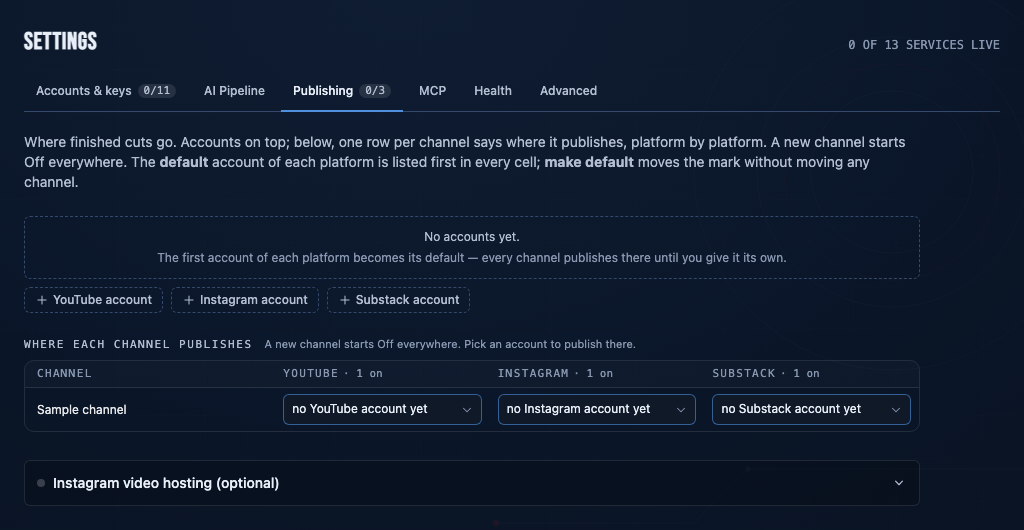
Accounts
There is one row per account, grouped by platform.
- + YouTube account, + Instagram account and + Substack account add one. The first account of a platform becomes its default.
- One account per platform carries the mark default. It is listed first in every cell of the table and in the channel's Destinations picker.
- Every row has edit and check, and says how many channels publish with it.
- Substack has no check, because nothing tells whose session cookie it is. Its row shows the handle you typed.
- Other accounts also have make default and a remove button.
- make default moves the mark. No channel changes where it publishes: channels that were on the old default stay on that account.
- The default cannot be removed. Make another account the default first.
- Tokens never come back to the browser. The list shows masks.
Where each channel publishes
There is one row per channel and one cell per platform. A cell is Off or an account.
- A new channel starts Off on every platform. It says publishes nowhere until you pick an account in at least one cell.
- Channels that existed before new channels started Off keep publishing where they did.
- Off is the same switch as the channel's YT, IG and Substack chips in its Publish tab. The preflight starts with that platform unticked, and the queue skips it unless you tick it there for one episode.
- Picking an account links the channel to it.
- Instagram video hosting (optional) under the table holds the Public base URL (see Instagram and the tunnel above).
Why channels link to accounts
A YouTube refresh token is bound to the channel you picked on Google's consent screen, not to your Google account. Two channels under one Google login still need two tokens.
Before accounts existed, reaching the second channel meant overwriting the first one's credentials. That silently moved its uploads and its stats with them.
Linking and checking
- Reuse the same OAuth client for a second YouTube account. It is already approved for public uploads, so only the refresh token has to be minted again.
- Run the consent flow with
access_type=offlineandprompt=consent, and pick the other channel in the channel picker.
- Run the consent flow with
- check asks the platform who the credentials belong to and writes the answer next to the account, for example "My History Channel (@myhistorychannel)".
- A token looks identical whichever channel it opens, so check is the only honest way to know an upload lands where you think. Changing a token clears its verdict.
- A failed check stays on the account's row, with the platform's own words and what to fix. Typical causes are a wrong IG user id or a token to generate again. Changing the Instagram password invalidates the token.
- Stats follow the link. The Performance tab reads each channel's numbers with that channel's account.
- To unlink, pick Studio default. The channel goes back to the default account. With no default for that platform, the option reads Studio default — not connected.
Deleting a linked account
Deleting an account a channel is linked to does NOT move that channel to the default.
- Its publishes fail with "Channel X is linked to YouTube account <id>, which no longer exists in Settings".
- Its stats are skipped.
- Link the channel to another account, or the default, and retry the errored queue items. Nothing lands on the wrong channel meanwhile.
Adding a Substack account
- Sign in at substack.com.
- Copy the substack.sid cookie from DevTools › Application › Cookies.
- Paste it into the new Substack account.
The handle only builds the published note's link. Each Substack account has its own promo comment and link (see below).
Adding an Instagram account
An Instagram account needs the access token and the IG user id.
- In your Meta app, open Instagram API › API setup with Instagram login › 2. Generate access tokens. The section starts collapsed.
- Add the account as an Instagram Tester if it is not listed.
- Press Generate token.
- An
IGAA…token brings its own IG user id. The studio asks Instagram on save. - Only an
EAA…token needs the1784…number under the account name. This is not the App ID. - The API is read off the token itself:
IGAA…is Instagram Login,EAA…is Facebook Login. There is nothing to choose. - edit on an account row changes its name, token or id. Empty secret fields keep the saved ones.
Altered or synthetic content
This setting marks YouTube uploads as altered or synthetic content.
- The checkbox is Declare uploads as altered or synthetic, in the channel's Settings tab › YouTube section.
- It sets YouTube's disclosure (
status.containsSyntheticMedia) on every upload. - YouTube has no channel-level setting for this. It is a per-video field, so the studio carries the intent and marks each upload.
- Turn it on when the reels are realistic footage of a real place or event that was generated rather than filmed.
- When it is off, the field is omitted entirely. An undeclared upload looks exactly as it did before this setting existed.
The upload sets the field and then confirms it with a second call. The first real upload came back from the API without the disclosure, even though it was asked for, so the studio verifies rather than trusts. A failed confirmation is logged, never fatal, because the video is already public by then.
After publishing
Daily snapshots pull views, likes and comments per platform into the Performance tab. Publish markers appear on the trend chart.
Substack: reels made from someone else's post
This section covers credit and comments when a reel is based on another writer's post.
Credit the author
- Paste the article link in the preflight. The publish copy gets it as its own paragraph in the note, so Substack shows a card.
- The copy also gets the author as a real @mention, looked up from the post's byline on save. The author actually gets pinged.
- Every
@handletoken in the description becomes a mention. Edit or remove it in the preflight. - A module that builds reels from someone's post can fill both for you.
Promo comment
A promo comment is a reply the studio posts under the video note right after publishing. It is the same text every time.
- Set it on the Substack account in Settings › Publishing, with an optional link under it.
- A channel can override it in its Settings tab › Substack video notes section.
- The channel's own text wins, then the promo of the Substack account the channel posts to.
- The preflight shows it per reel, prefilled. Empty means no comment.
- A failed comment never fails the publish.