Getting started
Reel Pipeline Studio turns a topic, an article or a URL into a rendered 9:16 reel, with script, voiceover, visuals, music and captions. It publishes the reel to YouTube, Instagram and Substack from one place.
Your first reel
The first time takes about 15 minutes, mostly the install and logging in. After that, a draft takes a couple of minutes and the render runs on its own.
The Start here card on Today walks you through the same steps. Each step ticks itself off. The card goes away after your own first take, or when you click Hide.
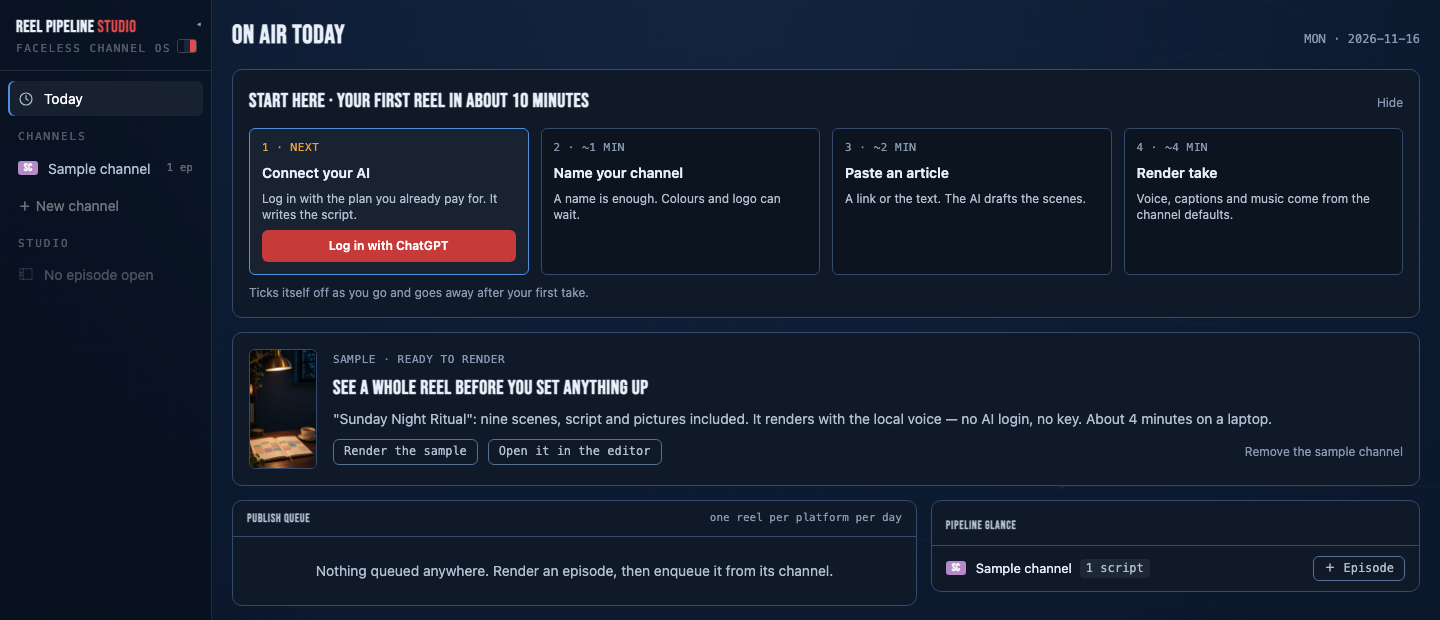
- Connect your AI. Open Settings in the left rail. Under Step 1 · Connect your AI, click Log in with ChatGPT and sign in in the browser. There is no terminal and nothing to install. On the Start here card the login runs right on the card.
- An API key works too: Anthropic for Claude, OpenAI, Gemini or OpenRouter. So does your own Claude or Codex app over Settings › MCP.
- Then pick who runs each studio role.
- Create a channel. Click New channel in the left menu.
- A small window asks for the name and niche.
- The next step is optional: read your brand colours from your website, or paste their codes, and confirm them.
- Then you see how a reel looks. Click a marked part to change it, drag the name, logo or watermark, and press Create channel.
- All of it can change later under Brand.
- Draft the script. Click New episode, then AI draft. Paste a URL, an article or a brief.
- A Substack draft's preview link works too (the "Preview" or share-draft URL), so a reel can be ready before the post goes out.
- Quick draft writes one script. 3 pitches offers three distinct directions first.
- Edit. The script pane is the source of truth.
- Visuals, audio and animation live in the right panel.
- The tool rail between the stage and the panel switches tools: scene tools, then reel tools, with Overview first.
- Render a take. Click Render take. Every render becomes a take (v1, v2 and so on).
- The active take is what publishing ships.
- To save a take as an MP4, use the download button next to it in the Take vN menu in the editor header.
- Publish. Enqueue the episode. The queue ships one slot per day per platform, or click now to publish right away.
- YouTube needs a one-time setup in Google Cloud first. Connect YouTube in Docs walks through it.
- Instagram needs a small Meta app of your own. See Connect Instagram in Docs.
Try the sample channel first
A fresh install starts with one finished episode, "Sunday Night Ritual", with script and pictures included.
- Render the sample on Today renders it with the local voice. It needs no AI login and no key.
- In a few minutes you see a whole reel and know the install works.
- Remove the sample channel deletes it and its pictures. It does not come back.
- An install that already had channels never gets the sample.
After your first take
When a channel's first take finishes, the render window lists what most people do next. Each row opens that tool.
- pictures for the colour-card scenes
- the script
- your colours and logo
- publishing (on Basic: saving the MP4)
If the install stops
The launcher checks your setup and says in plain words what to fix.
Wrong download or missing build
- Basic and Pro come as two downloads, one for macOS and one for Windows. Each has the app already built.
- Use the one for your computer. The launcher of the other one stops and names the zip to download instead.
- A copy that is missing its build stops the same way. Run
npm run update -- --force, or download the zip again from your Gumroad library.
Node.js version
- The launcher checks your Node.js first.
- Older than 22 stops with a note.
- Newer than the tested versions (22, 24, 26), or a short-lived odd release, only warns. The install goes on.
When npm install fails
The launcher says what went wrong and what to do. Typical causes:
- a dropped connection or a VPN
- a full disk
- a folder in OneDrive or iCloud Drive that npm may not write to
- a path too long for Windows
- a damaged npm cache
- a package that has no ready-made build for your Node
Start the launcher again after the fix. It carries on where it stopped.
Install report
When the install or the first build fails, the launcher also offers to send me an install report.
- It shows what the report holds and first saves the exact text in
logs/install-report.txt. - The report has your system, Node and studio version, what went wrong and the end of the log.
- Your user name is replaced by
<user>, and no keys are included. - You can add your email so I can reply.
- Nothing is sent unless you answer yes. No license key is needed.
Where things live
This is a map of the main places in the studio.
- Today: due publishes and a pipeline glance across channels, with counts per state (placeholders, script, rendered, published).
- Search: finds channels, episodes and even a line of a script.
- Open it from the left menu (at the bottom, above Render queue), or press Cmd+K (Ctrl+K on Windows) anywhere.
- The Up and Down arrow keys move, Enter opens, Esc closes.
- Channel tabs: Episodes, Publish queue, Performance, Topics and Settings.
- Docs (this page): searchable. The assistant can search it too, so ask it anything about the studio.
- Palette: the studio's own colours (see below).
Channel settings
The channel's Settings tab has:
- Channel: the niche.
- Schedule: when queued reels go out.
- one section per platform, with the Publish here switch, the account, and that platform's own options (the YouTube AI disclosure, the Substack promo comment).
- Delete channel: moves the channel to the trash folder
data/trash/channels. Move the folder back todata/channelsto restore it.
Palette
The palette is the colour swatch at the top of the left menu, under the logo.
- Choose Broadcast (navy and red, the default), Graphite, Dusk or Moss.
- The calmer three use softer contrast and a flat background. Try one if a monitor flickers or the navy tires your eyes.
- The choice is remembered per browser and never changes your reels.
Collapsed menu
The collapse button on the left menu leaves an icon rail. Icons navigate directly, and hovering shows the name.
- Today, with a red dot when a publish is due now.
- One coloured tile per channel.
- The open episode.
- Settings, Modules and Docs at the foot.
- The palette swatch at the top. A click switches to the next palette.
- The expand button brings the full menu back.
Addresses
Every screen has its own address, so a bookmark, a reload or Back lands on it.
/channels/<channel>for a channel/channels/<channel>/episodes/<episode>for a reel in the editor/settings,/modules,/docs
Links from older versions (/?v=…) still open.
Who can reach the studio
The studio runs on your computer and answers only this computer.
- The launcher serves it on
127.0.0.1. Other devices on your Wi-Fi cannot open it. - Web pages in your browser cannot change it.
- Your keys sit in
data/settings.json, readable by your user account only.
Use it from another device
You can open the studio from another device you trust, for example over a VPN such as Tailscale.
- Start the launcher with
RPS_HOSTset to this computer's address on that network, for exampleRPS_HOST=100.x.y.z. - To open it by a name instead of the address, add the name to
RPS_ALLOWED_HOSTS(comma-separated).
Anyone who can reach that address can use the studio without a login. Never use 0.0.0.0 on a shared network.
Updates
When a newer studio is out, a New version ready card appears in the left menu above Search. In the collapsed menu, a red dot shows on the update icon.
Install an update
- See what's new lists every version since yours, newest first. These are the same notes as Docs › What's new.
- Update to … downloads the new version, installs it, builds it and restarts the studio. The page reloads by itself, usually within a minute or two.
- Keep the launcher window (Terminal or command window) open meanwhile.
- A render that is running finishes first. The update waits for it and then starts by itself. Cancel stops the wait.
- Your reels, channels, keys, brand and settings stay as they are.
- If the update server does not accept your update token, the dialog asks for it. Paste the token from your Gumroad download page and click Try again.
npm run updatein a terminal does the same update by hand.- A studio started by a launcher from before 2.0.0-beta.12 cannot restart itself. After the update, close the launcher window and start it again.
Signed updates
Every update is signed. The studio checks the signature before it installs anything. If the check fails, it stops with "The update could not be verified" and leaves your studio exactly as it was.
How long updates last
This applies to Basic and Pro.
- Each purchase includes 12 months of updates.
- Settings › Accounts & keys shows the end date under Updates.
- After that, the studio keeps working on the version you have.
- Update then says your updates ended and offers a renewal: $49 for 12 more months, bought with the same email as the studio.
- Renew before the end date and the new 12 months start when the old ones end.
- The beta has its own 30 days.