Channels & episodes
A channel is one content brand, with its own look, voice and cadence. An episode is one reel inside a channel.
Everything is stored as plain files on your disk. Nothing is locked in a database.
Create a channel
Click New channel. It takes three steps.
- Name and niche. Channel names must be unique, ignoring case. A second channel called "History" is refused, so two channels never look alike on the Deck.
- Colours (optional). Either click Read colours to take them from a web page, or paste three colour codes. Nothing is applied until you click Use these colours.
- Look. A preview of the reel, with Light | Dark above it.
To rename a channel, click the pencil next to its name at the top of the channel, or double-click the name. Enter saves, Escape cancels. Settings › Channel › Name does the same. The same unique-name rule applies. The channel keeps its folder, links and publish queue.
Read colours reads the page's own HTML and CSS. No AI runs. Some pages build their look in the browser and give too few colours; paste the codes instead.
Arranging the look
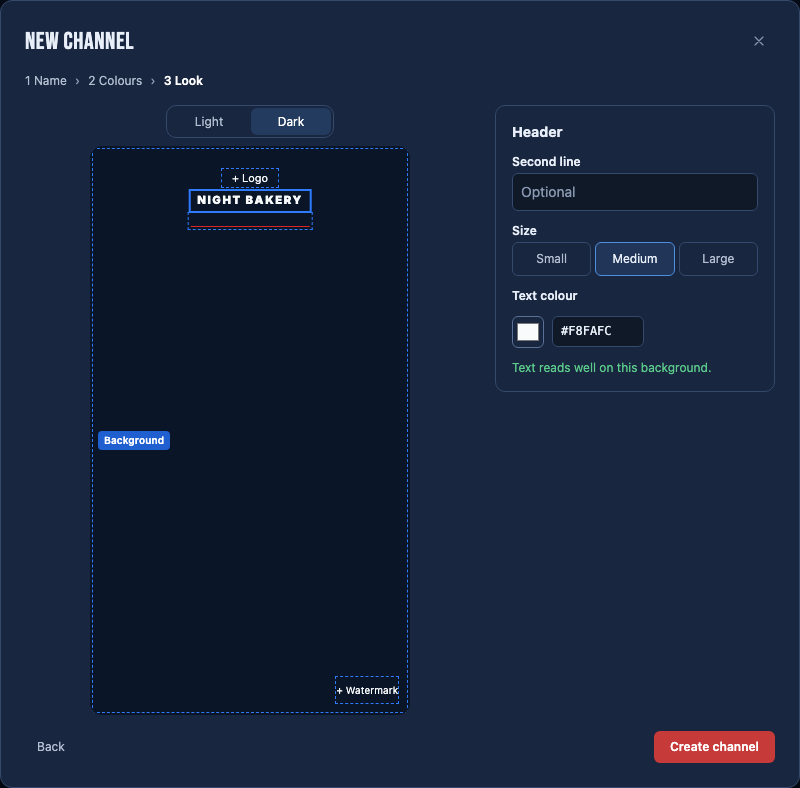
- Click a marked part of the preview to open its settings on the right.
- Double-click the channel name to type it.
- Drag the name (with its line), the logo and the watermark to move them.
- Near the middle of the frame a guide line appears and the part snaps to it. Hold Shift to drag freely.
The look becomes the channel's brand default. Reels you already have keep their own look.
Episodes
Episode states
An episode's state comes from what exists, so there is no status to keep up to date:
- empty: a placeholder with a title and no script yet
- script: the script is written
- rendered: at least one take is rendered
- published: it went out to a platform
The Episodes tab filters by each state.
Episode cards
- A card shows the poster of the active take. Without one, it shows the first scene's picture.
- The title sits on a solid band at the bottom, so the poster's captions never show through it.
- A placeholder episode opens as itself. The AI draft panel fills in its topic from the bank, so drafting takes one click.
Moving around
- The browser's Back and Forward buttons move between the views you visited: Today, a channel, the editor, another episode.
- If you leave an episode with unsaved edits, the studio asks first. Cancel keeps you where you were, and Forward still works.
- A page reload reopens the same view and episode.
Saving and undo
- Saving is manual: the Save button in the header, or Cmd+S (Ctrl+S on Windows).
- Cmd+Z undoes and Shift+Cmd+Z redoes, also after a take has rendered.
- Inside a text field you just typed in, Cmd+Z takes back the whole typed phrase, not one character at a time. It is the same step as the Undo button.
- When the assistant changes the saved script and you have no unsaved edits, the editor reloads it and stays Saved.
Takes
Each render becomes a take: v1, v2 and so on.
- An approved take is never overwritten.
- Until you pick one, the newest render is the active take. Once you have picked, later renders join the list without replacing your pick.
- Switch the active take from the Take vN menu in the editor header.
- Every take in that menu has a download button that saves it as an MP4.
Compare takes
Once an episode has two takes, Compare takes appears in the Take vN menu.
- It opens on the newest take against the one before it. Pick any other pair above each video.
- Show the takes one at a time or side by side.
- Side by side, one play button and one scrubber drive both videos, so they always show the same moment.
- Esc closes the comparison. The takes list stays open.
Cast
A channel keeps a cast: the people, products and recurring characters its pictures show, such as you, your product or a mascot. Each member has a name, a kind and one to three photos.
- Open any scene's Visual › Image window and click Generate.
- Under In this scene, click + add to add a member.
- Tag members per scene.
Every episode of the channel uses the same cast. It is live, not a copy: a new photo of a member reaches every episode's next picture.
- Removing a member asks first, because every episode loses it.
- The cast never sets the picture style. That comes from each reel's style master.
Topics bank
The Topics tab keeps your ideas. A topic is a title with an optional note (the angle), or a URL.
- Link topics carry a
linkbadge. The page is read when you draft from it. - The episode button on a topic starts a draft with the topic and angle filled in.
- Used topics dim and show which episode they became. Delete that episode and the topic is unused again.
Performance
The Performance tab shows how published reels do:
- views per day over time
- your top episodes
- a card per episode with its funnel, with search and paging
Stats are collected once a day at 08:10.
- The chart button on an episode card jumps to its performance. It shows on published episodes and on any episode that already has numbers.
- Videos are matched to episodes through the publish queue, by YouTube video ID or Instagram media ID or link.
- A reel on your connected account that the studio did not publish still shows, marked no episode.